
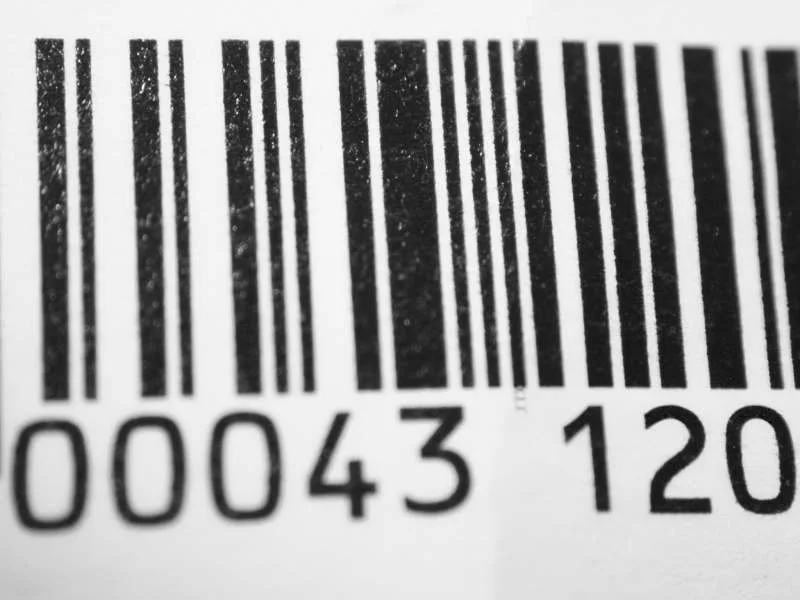
When a thermal barcode printer starts producing faded labels, light text, or unclear barcodes, it can affect scanning accuracy and daily operations. This problem is common in thermal transfer printing and can happen even when the printer is still running normally.
Faded printing does not always mean that the printer needs replacement. In many cases, the problem can be solved by checking the ribbon, cleaning the printhead, adjusting printer settings, or correcting mechanical issues.
This guide explains the common causes of faded printing on a thermal barcode printer and provides practical solutions to restore clear and sharp labels.
Why Is My Thermal Barcode Printer Printing Too Light?
A thermal barcode printer creates images by applying heat through the printhead. In thermal transfer printing, the heat transfers ink from the ribbon onto the label surface.
If the heat transfer process is affected, the printed image may become lighter than normal.
The most common causes of faded printing include:
- Dirty thermal printhead
- Incorrect ribbon installation
- Poor ribbon or label condition
- Low print darkness setting
- Printing speed too high
- Uneven printhead pressure
- Worn thermal printhead
Follow the steps below to identify and fix the problem.
1. Check the Thermal Transfer Ribbon and Labels
Before checking printer hardware, start with the printing materials.
A large number of faded printing problems are caused by incorrect ribbon installation or unsuitable labels.
Check the ribbon installation direction
For thermal transfer printers, the coated side of the ribbon must face the label.
If the ribbon is installed incorrectly, the ink cannot transfer properly, which causes:
- Light printing
- Missing areas
- Unclear characters
Check the ribbon condition
A ribbon that has been stored for too long or exposed to unsuitable conditions may affect printing performance.
Check whether:
- The ribbon is damaged
- The ribbon surface is dry
- The ribbon has been stored properly
Check the label material
Different labels require different printing materials.
Problems may occur when:
- Thermal labels lose sensitivity due to moisture
- Label coating is uneven
- Ribbon and label types do not match
Try using a new ribbon and label roll to confirm whether the consumables are causing the faded printing issue.
2. Clean the Thermal Printhead
A dirty printhead is one of the most common reasons why a thermal barcode printer produces faded labels.
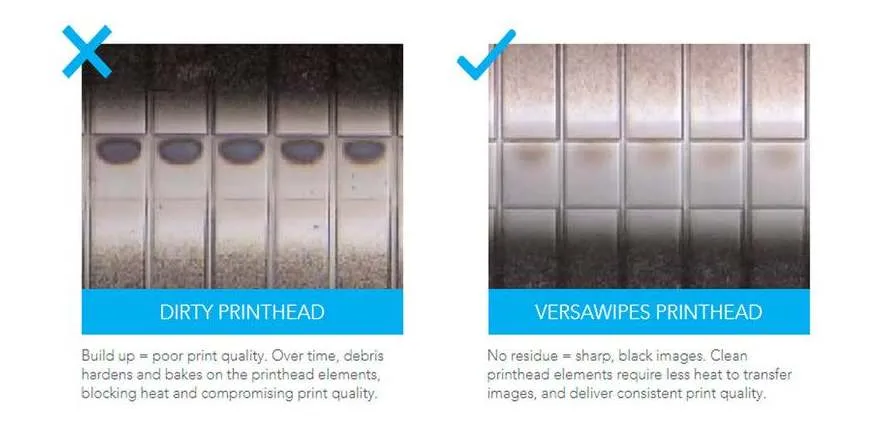
During printing, paper dust, adhesive residue, and dirt can accumulate on the printhead surface. These contaminants prevent the heating elements from contacting the ribbon or label evenly.
This can cause:
- Faded printing
- Missing dots
- Uneven darkness
- White lines on labels
How to clean a thermal printhead
For detailed instructions, please refer to our guide: How to Clean a Barcode Printer Head Without Damaging It?
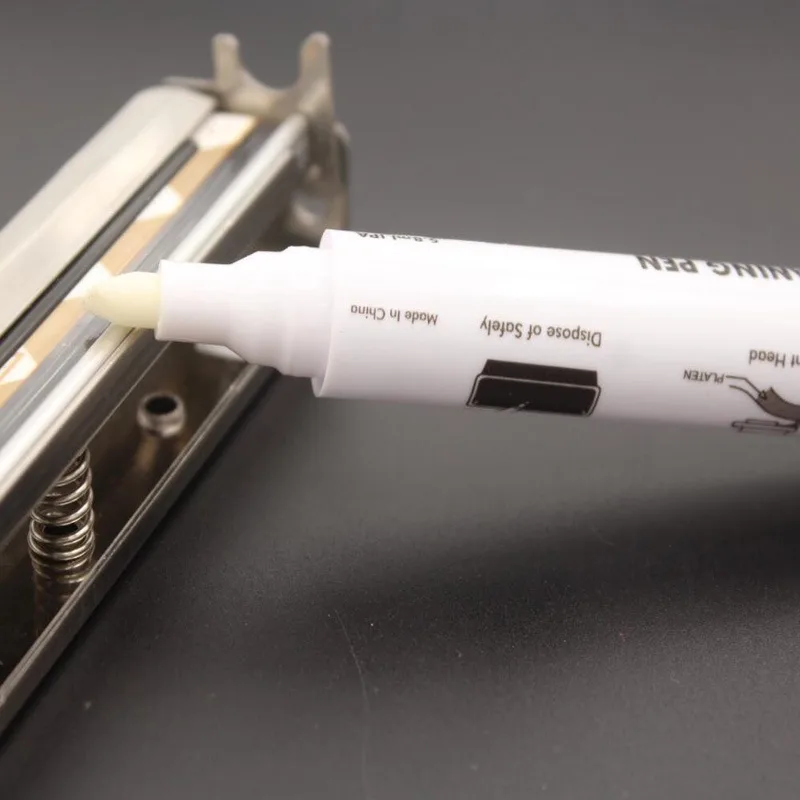
Step 1: Turn off the printer
Turn off the thermal barcode printer and open the printer cover.
Inspect the printhead surface and check for:
- Black residue
- Dust buildup
- Uneven reflection
Step 2: Clean the printhead carefully
Use a lint-free cloth or cotton swab with high-purity isopropyl alcohol (above 95%).
Gently wipe the heating line of the printhead in one direction.
Do not:
- Scrub back and forth repeatedly
- Apply excessive pressure
- Use sharp tools
These actions may damage the heating elements.
Step 3: Test the printing result
Allow the printhead to dry completely before restarting the printer.
Print a test label and check whether the faded printing problem has improved.
3. Increase Print Darkness and Reduce Printing Speed
If the ribbon and printhead are working correctly, check the printer settings.
Adjust print darkness
The printhead needs enough heat to transfer ink from the ribbon to the label.
If the darkness setting is too low:
- Labels appear faded
- Text becomes lighter
- Barcodes may become difficult to scan
Increase the darkness setting gradually until the desired print result is achieved.
Avoid setting the darkness too high because excessive heat may shorten printhead lifespan.
Reduce printing speed
Printing speed affects the amount of time the printhead transfers heat.
When the speed is too high:
- Heat transfer time becomes shorter
- Less ink transfers to the label
- Printing becomes lighter
Reducing speed can improve printing clarity.
4. Check Printhead Pressure and Platen Roller
A thermal barcode printer requires even pressure between the printhead and platen roller.
If the pressure is uneven, some areas of the label may not receive enough heat.
Typical symptoms include:
- One side of the label is lighter
- Printing density is inconsistent
- Some sections are clear while others are faded
Check:
- Whether the printer cover closes correctly
- Whether the printhead pressure mechanism works properly
- Whether the platen roller surface is worn or damaged
A damaged platen roller can prevent the printhead from maintaining proper contact with the label.
5. Check Whether the Thermal Printhead Needs Replacement
If you have tried:
- Installing a new ribbon
- Checking the label material
- Cleaning the printhead
- Adjusting printer settings
but the thermal barcode printer still prints too lightly, the printhead may be worn out.
A damaged or aged thermal printhead may show:
- Permanent white lines
- Missing dots
- Consistently faded printing
- Visible scratches or burn marks
Once the heating elements are damaged, the printhead cannot be repaired and needs replacement.
How to Prevent Faded Printing Problems?
Regular maintenance can help keep your thermal barcode printer working properly.
Recommended practices:
- Clean the printhead regularly
- Use high-quality ribbons and labels
- Avoid excessive printing temperature
- Keep the printer environment clean
- Replace worn printer parts when necessary
Proper maintenance not only improves printing quality but also extends thermal printhead life.
Need a Replacement Thermal Printhead?
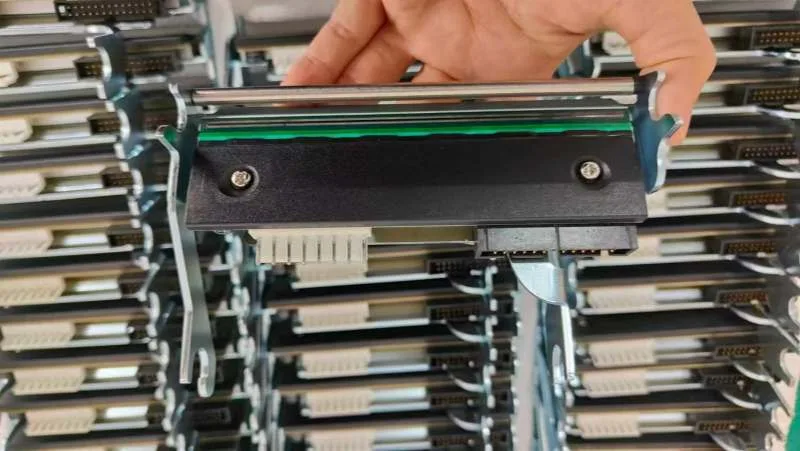
If your thermal barcode printer continues producing faded labels after troubleshooting, replacing the printhead may be the solution.
When selecting a replacement printhead, always confirm:
- Printer model
- Printhead part number
- Resolution (DPI)
- Printing width
Choosing the correct printhead ensures reliable printing performance and compatibility.
Conclusion
Faded printing on a thermal barcode printer is usually caused by problems with consumables, printhead cleanliness, printer settings, or mechanical pressure.
By following the troubleshooting steps above, you can quickly identify the cause and restore clear label printing.
If cleaning and adjustments do not solve the problem, the thermal printhead may have reached the end of its service life and should be replaced. Hansprintec supplies original and compatible thermal printheads for leading barcode printer brands such as Zebra, TSC, Honeywell, SATO, and Datamax.
