
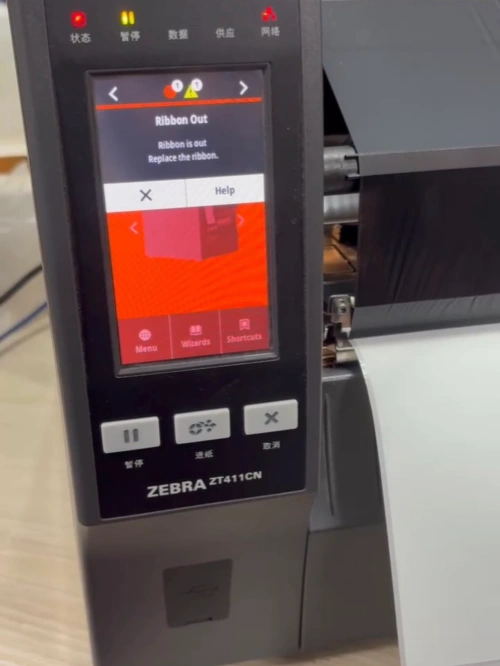
A Zebra printer may sometimes display a “Ribbon Out” error even when a new ribbon has been installed. When this happens, the printer may stop printing or fail to recognize the ribbon correctly.
However, this error does not always mean the ribbon is empty. Incorrect print method settings, improper ribbon installation, a dirty sensor, or incorrect calibration can also prevent the printer from detecting the ribbon.
In this guide, we will explain the common causes of the Ribbon Out Error and walk you through practical troubleshooting steps, starting with the simplest checks.
1. Common Causes of Zebra Ribbon Out Error
1.1 Incorrect Print Method Settings
Zebra printers generally support two printing methods: Thermal Transfer and Direct Thermal.
If you are using a ribbon for Thermal Transfer printing but the printer is set to Direct Thermal mode, it may not detect the ribbon correctly. A mismatch between the printer’s settings and the computer driver settings can also cause this problem.
1.2 Improper Ribbon Installation
Incorrect ribbon installation is another common reason for a Zebra printer to show a Ribbon Out error.
For example, the ribbon coating may face the wrong direction, the ribbon may not follow the correct path, or the take-up roll may not be secured properly. These issues can affect ribbon movement and detection.
1.3 Dirty or Blocked Ribbon Sensor
The ribbon sensor detects the ribbon inside the printer. If dust, paper debris, or label material covers the sensor area, the printer may fail to recognize the ribbon and display an incorrect error message.
1.4 Incorrect Sensor Calibration
After changing the ribbon or label stock, the printer may need to recalibrate its media and ribbon sensors.
If the sensors are not calibrated correctly, or the calibration data does not match the current media, the printer may not detect the ribbon accurately.
1.5 Hardware Failure
If the print settings, ribbon installation, and sensor cleaning are all correct, a hardware problem may be responsible.
A damaged ribbon sensor, a loose or disconnected sensor cable, or a problem with the mainboard’s detection circuit can cause the printer to continue displaying the Ribbon Out message.
2. How to Fix Zebra Printer Ribbon Out Error
2.1 Check the Ribbon
First, open the printer cover and check the actual condition of the ribbon.
- Check whether the ribbon size matches your printer, including its width and core size. See our blog Thermal Transfer Ribbon Selection Guide for more details.
- Check whether the ribbon has been used up.
- Look for tears, wrinkles, or areas where the ribbon is stuck.
- If the ribbon is empty or damaged, replace it with a new ribbon that meets the printer’s requirements.
If the ribbon itself is in good condition, check the print method settings next.issues.
2.2 Check Print Method Settings
Make sure the printer’s print method matches the type of media you are using.
- If you are using a ribbon for Thermal Transfer printing, select Thermal Transfer mode.
- Check the settings on both the printer and the computer driver to make sure they match.
After changing the settings, try printing again. If the error remains, check the ribbon installation.
2.3 Reload the Ribbon Correctly
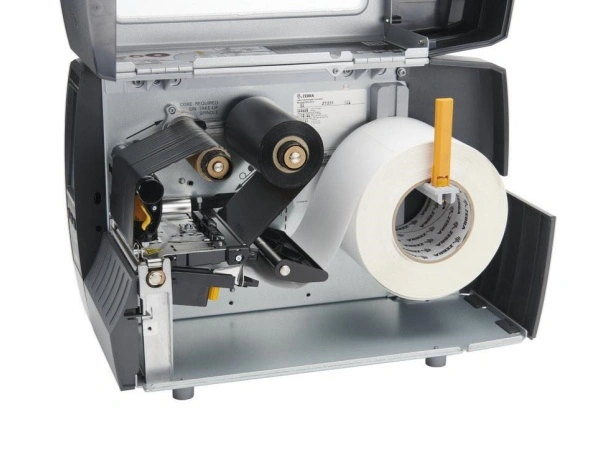
Incorrect installation can prevent the ribbon from moving properly and affect the printer’s ability to detect it. Follow these steps to reload the ribbon:
- Open the printer cover and remove the installed ribbon.
- Check the ribbon coating direction and make sure it matches the printer’s requirements.
- Follow the loading diagram inside the printer to check the ribbon path.
- Make sure the ribbon passes correctly under the printhead and through the required detection area.
- Check that the supply and take-up rolls are properly installed and secured.
Finally, make sure the ribbon moves smoothly without slipping, becoming too loose, or getting stuck.
2.4 Clean the Ribbon Sensor
If the ribbon is installed correctly but the printer still cannot detect it, check the ribbon sensor.
- Refer to the printer’s user manual to locate the ribbon sensor.
- Check for dust, paper debris, or label material around the detection area.
- Clean the sensor using the method recommended for your printer model.
- Check that the sensor is properly positioned and its connections are secure.
For the Zebra ZT411, the ribbon sensor is located inside the media compartment near the ribbon path. Open the printer cover and gently clean the sensor area to remove any dust or debris.
After cleaning, reload the supplies and try printing again.
2.5 Perform Sensor Calibration
If the Ribbon Out error appears after changing the ribbon or label stock, sensor calibration may help. Before starting, make sure the ribbon and labels are installed correctly.
Depending on your printer model, you may need to perform Media and Ribbon Sensor Calibration through the printer menu or by following the instructions in its official user manual.
For the Zebra ZT231, there are two ways to start manual calibration:
- Touchscreen operation: Select Print > Sensors > Manual Calibration > Start Calibration.
- Button operation: Press and hold PAUSE + FEED + CANCEL together for about 2 seconds to start calibration.
Follow the on-screen instructions to complete the process. Press Next to move through the steps. When calibration is complete, press PAUSE to exit pause mode and resume printing.
After calibration, test the printer to see whether the error has disappeared.
2.6 Check for Hardware Problems
If the previous steps do not solve the problem, further hardware inspection may be necessary. Check the following components:
- Ribbon sensor: Check whether the sensor is damaged or unable to detect the ribbon.
- Sensor cable: Look for loose, disconnected, or damaged cables.
- Mainboard: If the sensor and its cable are working properly, the mainboard’s detection circuit may need further inspection.
If a hardware failure is confirmed, contact a qualified technician to identify the faulty component and determine whether it needs replacement.
3. How to Prevent Zebra Ribbon Out Errors
Regular maintenance can help reduce the chance of ribbon detection problems and unnecessary printer downtime.
- Install supplies correctly: Follow the printer’s loading instructions to avoid incorrect ribbon direction or improper installation.
- Use suitable supplies: Choose ribbons and labels that meet your printer’s specifications.
- Clean the sensors regularly: Remove dust and paper debris from the ribbon sensor and media path.
- Check calibration when changing supplies: After changing ribbon or label sizes, check whether sensor recalibration is needed.
- Keep print settings consistent: Make sure the print method selected on the printer matches the settings in the computer driver.
These simple practices help maintain reliable supply detection and keep your Zebra printer running smoothly.
4. Frequently Asked Questions (FAQs)
Q1: Why does my Zebra printer say Ribbon Out when the ribbon is full?
This does not necessarily mean the ribbon is empty. Incorrect print settings, improper ribbon installation, a dirty sensor, or incorrect calibration may prevent the printer from detecting it. Check these issues before considering hardware replacement.
Q2: How do I clear the Ribbon Out error on a Zebra printer?
First, check the ribbon condition and print method settings. Then reload the ribbon, clean the sensor, and perform sensor calibration if necessary. If the error remains, inspect the sensor and its connections.
Q3: Where is the ribbon sensor on a Zebra printer?
The ribbon sensor is usually located inside the printer near the ribbon path. However, its exact position varies by model. Refer to the corresponding user manual before cleaning or inspecting the sensor.
Q4: Can a dirty ribbon sensor cause a Ribbon Out error?
Yes. Dust, paper debris, or label material can block the sensor’s detection area and affect ribbon recognition. Check the sensor regularly and clean it according to the printer manufacturer’s instructions.
Q5: Why does my Zebra printer show Ribbon Out after changing the ribbon?
The new ribbon may not be installed correctly, or the print method setting may not match the supplies being used. The printer may also need sensor recalibration after the ribbon is changed. Check these points before assuming there is a hardware problem.
Q6: When should I replace a Zebra ribbon sensor?
Consider replacing the sensor if it is visibly damaged or still cannot detect the ribbon after checking the installation, settings, cleaning, and calibration. Before ordering a replacement, inspect the sensor cable as well to confirm which component is faulty.
5. Conclusion
A Zebra printer’s Ribbon Out error does not always mean the ribbon has run out. Incorrect print settings, improper installation, sensor contamination, and calibration problems can all affect ribbon detection.
Start with the basic checks, then move on to sensor cleaning, calibration, and hardware inspection if needed. This approach can help you identify the cause without replacing parts unnecessarily.
If a ribbon sensor or another printer component needs replacement, feel free to contact us. Our team can help identify the correct part based on your printer model and provide suitable product recommendations.
