
1. Introduction
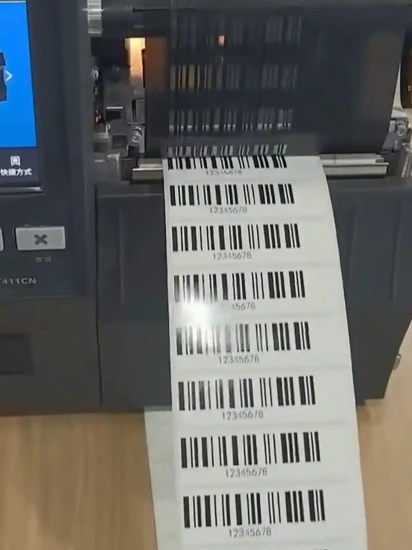
Thermal printer crooked printing is a common issue that can affect label quality and printing accuracy. You may notice that text, barcodes, or images appear tilted, or that labels gradually move to the left or right during printing.
In most cases, this problem is related to the media feeding system. When labels cannot move smoothly along the correct path, the printed content may become misaligned. Severe label skew can also affect barcode scanning and subsequent operations.
So, why does a thermal printer print crooked labels? This guide explains the four common causes of label misalignment, practical troubleshooting methods, and maintenance tips to help prevent crooked printing.
2. Common Causes of Thermal Printer Label Skew
Before replacing any printer components, it is important to identify what causes the labels to move out of alignment. The following are four common reasons for thermal printer label skew.
2.1 Improper Media Guide Adjustment
Media guides keep labels aligned as they move through the printer. If the distance between the guides is too wide, labels may shift from side to side during printing. On the other hand, guides that are too tight can squeeze the label edges, increase feeding resistance, or deform the media.
As a result, labels may gradually move toward one side instead of following a straight feeding path.
A typical symptom is that the first few labels print correctly, but subsequent labels gradually become misaligned.
2.2 Dirty or Worn Platen Roller
The platen roller works with the printhead to feed labels through the printing area. However, dust, paper debris, and adhesive residue can accumulate on its surface, causing uneven friction.
After long-term use, the roller may also develop cracks, dents, or other signs of wear. These conditions can affect media feeding and cause labels to shift toward one side.
You may notice inconsistent feeding, different degrees of label misalignment, or difficulty moving labels smoothly through the printer.
2.3 Uneven Printhead Pressure
The printhead needs to maintain proper and relatively even contact with the platen roller to ensure stable media feeding.
If the printhead is not installed correctly or its locking mechanisms are not fully secured, the contact pressure on both sides may become uneven. For printers with adjustable pressure settings, incorrect adjustments may also affect the feeding process.
In some cases, uneven printhead pressure can cause inconsistent print darkness, with one side appearing lighter than the other.
Since printhead structures and pressure adjustment methods vary between printer models, always follow the manufacturer’s instructions. Avoid adjusting the pressure mechanism without understanding how it works.
2.4 Deformed Label Rolls or Uneven Media Winding
The condition of the label roll can also contribute to crooked printing.
If a label roll is squeezed during transportation or storage, its edges may become deformed. Uneven winding, curled backing paper, or incorrect roll positioning can also affect how labels unwind and enter the printer.
Check the label roll for uneven edges, loose winding, or visible deformation.
If replacing the original roll with a properly wound and compatible one significantly improves printing alignment, the media itself may have been contributing to the problem.
If your printer is skipping labels rather than printing them crooked, check out our guide on Why Is My Barcode Printer Skipping Labels? for more troubleshooting tips.
3. How to Fix Label Printer Crooked Printing
After identifying the possible causes, you can follow these troubleshooting steps to resolve label alignment problems.
Before inspecting internal components, stop active print jobs, turn off the printer, and allow the printhead to cool. Always follow the manufacturer’s safety instructions.
3.1 Adjust the Media Guides
First, check whether the label roll is correctly positioned and whether the media guides are properly adjusted.
Move the guides until they lightly touch the edges of the label stock. They should prevent excessive sideways movement without squeezing the media.
After adjustment, make sure the labels can move smoothly along the feeding path. Then print several test labels to check whether their positions remain consistent.
3.2 Clean and Inspect the Platen Roller
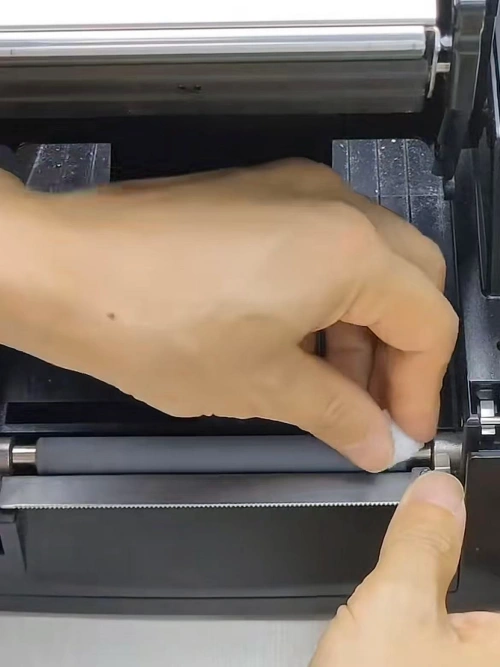
Turn off the printer before cleaning the platen roller.
Remove dust, paper debris, and adhesive residue using cleaning materials recommended by the printer manufacturer. Avoid using tools or chemicals that could damage the roller surface.
After cleaning, inspect the roller for cracks, dents, excessive wear, or deformation.
If the surface is still in good condition, reinstall the label stock and perform a test print. However, if the roller is seriously worn or damaged, cleaning alone may not restore its feeding performance. In this case, consider replacing it with a compatible platen roller.
3.3 Check Printhead Installation and Pressure
Check whether the printhead is properly installed and whether its locking clips or mounting structures are fully secured.
Also, make sure there are no foreign objects or obvious gaps between the printhead and platen roller.
If your printer supports adjustable printhead pressure, check the settings according to the manufacturer’s instructions.
After inspection, print several test labels. Pay attention to both feeding stability and print darkness. If the printhead cannot be secured properly or the pressure mechanism is damaged, contact a qualified technician instead of forcing an adjustment.
3.4 Replace the Deformed Label Roll
Remove the current label roll and check whether its edges are straight and whether the media is tightly and evenly wound.
Make sure the replacement labels have the correct width, gap dimensions, and core size for your printer.
Install a new, properly stored label roll in the correct direction and print several test labels.
If the new roll feeds smoothly while the original one continues to cause misalignment, the problem may be related to the original media.
To prevent similar problems, store label rolls in a dry, flat place and avoid placing heavy objects on them.
4. How to Prevent Thermal Printer Crooked Printing
Regular maintenance can reduce the risk of crooked label printing and help keep your thermal printer running reliably.
Here are four practical maintenance tips:
- Install labels correctly: Make sure the label roll is properly positioned and adjust the media guides according to the label width.
- Clean the platen roller regularly: Remove dust, paper debris, and adhesive residue. Check for cracks, dents, and signs of wear.
- Inspect the printhead: Follow the manufacturer’s maintenance recommendations and make sure the printhead is properly installed.
- Store label rolls properly: Keep media in a dry, flat environment and avoid squeezing or deforming the rolls.
Additionally, when switching to a different label size or type, check the media settings and calibration according to your printer’s instructions.
If you notice unusual feeding behavior, investigate it early rather than allowing the problem to affect more labels or other printer components.
5. Frequently Asked Questions
5.1 Why Does My Thermal Printer Print Crooked Labels?
This is usually related to improperly adjusted media guides, a dirty or worn platen roller, uneven printhead pressure, or a deformed label roll. Check these components along the media feeding path to identify the source of the problem.
5.2 Can Loose Media Guides Cause Label Printer Crooked Printing?
Yes. Loose media guides allow labels to move from side to side instead of following a straight path. Adjust them until they lightly touch the label edges without squeezing the media.
5.3 Why Does My Thermal Printer Have a Crooked Label Even When the Roll Is Loaded Straight?
Correct roll installation does not guarantee that the entire feeding path is working properly. Incorrect guide spacing, platen roller wear, or improper printhead installation may still cause label misalignment.
5.4 Can a Worn Platen Roller Cause Thermal Printer Label Skew?
Yes. A worn or deformed platen roller may create inconsistent friction, causing unstable media feeding. Clean the roller first and inspect its surface. Replace it if you find significant cracks, dents, or wear.
5.5 How Can I Fix Thermal Printer Crooked Printing Without Replacing the Printer?
Start by checking the media guides, cleaning the platen roller, and inspecting the label roll. Also, check whether the printhead is properly installed. If these steps do not solve the problem, further inspection of the feeding mechanism may be necessary.
5.6 When Should I Repair or Replace My Thermal Label Printer?
If basic troubleshooting does not resolve the problem, inspect the printhead installation, pressure mechanism, and other feeding components.
When only one component is worn or damaged, repairing the printer or replacing the affected part is often worth considering. However, if multiple components have failed or repair costs are too high, replacing the entire printer may be a more practical option.
6. Conclusion: Solve Thermal Printer Crooked Printing Problems
Thermal printer crooked printing is usually related to media guide adjustment, platen roller condition, uneven printhead pressure, or the condition of the label roll.
By checking these areas step by step, you can identify common feeding problems and determine whether cleaning, adjustment, or component replacement is necessary.
Regular maintenance also helps prevent recurring label alignment issues. If your printer continues to print crooked labels after basic troubleshooting, the printhead, platen roller, or other feeding components may need further inspection.
Need help finding the right replacement parts? Contact us with your printer brand, model number, and a description of the problem. Our team can help identify compatible replacement parts and provide a quotation for your requirements.
