
How to Fix the Zebra Printer Head Identification Failed Error
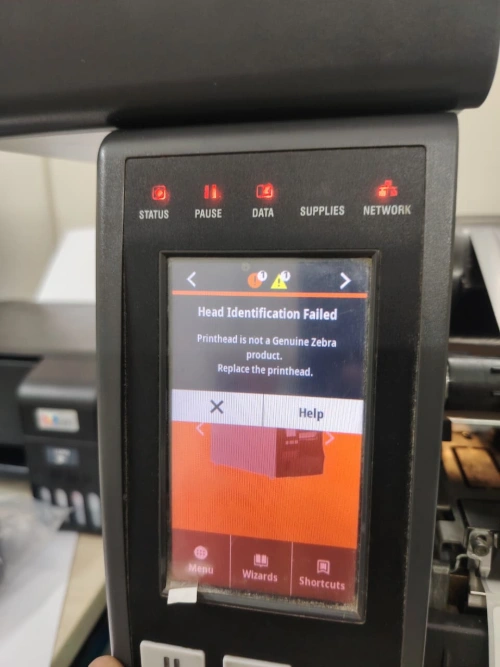
When your Zebra printer displays a “Head Identification Failed” error, it may stop printing or fail to recognize the installed printhead. This issue can be frustrating, especially when your printer is needed for daily label printing or barcode operations.
A Zebra printer Head Identification Failed error does not always mean the printhead needs replacement. The problem may result from an incompatible printhead, dirty or damaged identification contacts, a loose connection, or a fault in the printer’s mainboard.
In this guide, we explain the four common causes of this error and provide step-by-step troubleshooting instructions. By following these checks in order, you can identify the likely cause, avoid unnecessary part replacements, and determine when professional repair is needed.
What Causes the Zebra Printer Head Identification Failed Error?
Before attempting a repair, it helps to understand why your Zebra printer cannot identify the installed printhead. The problem generally falls into four categories.
1. Incorrect or Incompatible Zebra Printhead
Zebra printers use different printheads depending on the printer model, resolution, and hardware configuration. Two printers may look similar or belong to the same series without using interchangeable printheads.
If the replacement printhead has an incorrect part number, resolution, or specification, the printer may fail to recognize it.
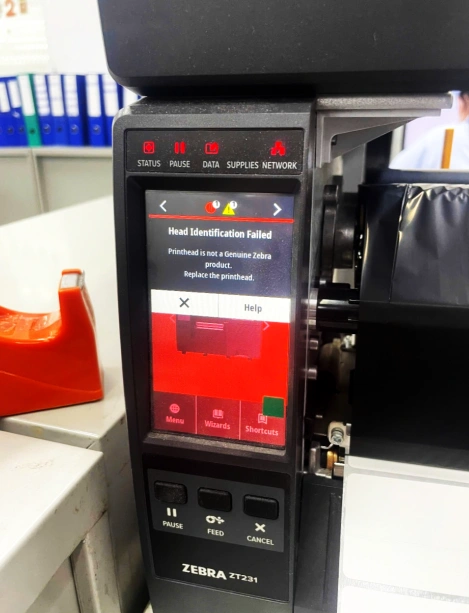
For example, we have encountered a case in which a customer installed a ZT230 printhead in a ZT231 printer and received a “Head Identification Failed” message. This illustrates why checking compatibility is essential before installing a replacement.
Always verify the exact printer model and printhead part number rather than relying on appearance or product series alone.
2. Dirty or Damaged Printhead Identification Contacts
The printhead chip and identification contacts help the printer recognize the installed component. Dust, residue, or other contaminants on these areas may interfere with electrical contact.
Physical damage can also cause identification problems. For example, damaged contacts or faulty electronic components inside the printhead may prevent the printer from reading the identification information correctly.
In these situations, the printhead may appear to be installed correctly, yet the printer still cannot recognize it.
3. Improper Printhead Installation or Connection Problems
Even a compatible printhead may not work properly if it is not installed or connected correctly.
- The printhead is not seated correctly.
- The retaining mechanism is not secured.
- Electrical contacts are not making proper contact.
- A connecting cable or connector is loose, worn, or damaged.
These problems can interrupt communication between the printhead and the printer. Therefore, if the printhead model is correct, inspect its installation and connections before assuming that the component itself has failed.
4. Zebra Printer Mainboard or Identification Circuit Failure
If the printhead is compatible, its identification contacts are clean, and all connections appear normal, the fault may be inside the printer.
The mainboard and associated identification circuits contain electronic components that support communication with the printhead. If a relevant circuit or component fails, the printer may be unable to recognize an otherwise functional printhead.
Unlike surface contamination or a loose connection, an internal electronic fault may not have obvious external signs. A qualified technician may need to inspect the mainboard and related circuits to identify the actual cause.
How to Fix the Zebra Printer Head Identification Failed Error
Once you understand the possible causes, follow these troubleshooting steps from the simplest checks to more advanced diagnostics.
Safety note: Turn off the printer, disconnect its power supply, and allow the printhead to cool before handling it. Follow the manufacturer’s service instructions for your specific model.
Step 1: Check the Zebra Printhead Model and Compatibility
Start by confirming that the installed printhead matches your printer.
- Check the printer’s identification label or product documentation to confirm the complete model number.
- Identify the printhead part number and compare it with the specifications for your printer.
- Verify the printhead resolution, such as 203 dpi or 300 dpi, and any other applicable specifications.
- If the installed printhead is incompatible, replace it with a verified compatible model and test the printer again.
Do not assume that printheads are interchangeable simply because two printers belong to the same product family.
If you are unsure which part you need, compare the part number with the printer model before ordering a replacement. You can also read our guide, “Zebra Printhead Part Numbers by Printer Model,” to help identify the correct component.
Step 2: Inspect and Clean the Printhead Identification Contacts
If the model and specifications are correct, inspect the accessible identification chip and contacts.
Disconnect the printer from its power source and wait for the printhead to cool.
- Check the accessible contacts for dust, residue, or visible damage.
- If you find surface contamination, clean the affected area using the method and materials recommended by the manufacturer.
- Allow the area to dry completely if the cleaning method requires it.
- Reinstall the printhead, reconnect the printer, and check whether the error has disappeared.
Avoid scraping the chip with sharp tools or applying cleaning chemicals that are not suitable for electronic contacts. Excessive pressure or inappropriate cleaning materials may cause further damage.
If the contacts are visibly damaged, or the error persists after careful cleaning, stop repeating the process and arrange further inspection.
For additional cleaning guidance, see our article, “How to Clean a Barcode Printer Head Without Damaging It.”
Step 3: Reinstall the Printhead and Check Its Connections
A loose connection can prevent a compatible printhead from communicating with the printer.
- Turn off and unplug the printer.
- Follow the manufacturer’s instructions to release the printhead retaining mechanism and remove the printhead if necessary.
- Inspect the installation area and accessible connectors for foreign material or visible damage.
- Reinstall the printhead, making sure it sits correctly and is securely fastened.
- Check the relevant cables and connectors for looseness, wear, or physical damage.
- Reconnect the power and test the printer.
Handle the connectors carefully. Do not force a connector into place or pull directly on a cable.
If a cable or connector is damaged, or the error remains after correct reinstallation, seek professional assistance rather than attempting an improvised repair.
Step 4: Have the Mainboard and Identification Circuit Inspected
If the previous steps do not resolve the problem, the next step is professional diagnosis.
A qualified technician can inspect the printhead, connecting cables, mainboard, and associated identification circuits to determine where communication is failing.
Depending on the findings, the repair may involve replacing a damaged printhead, repairing a connection, or addressing a fault in the printer’s internal electronics.
Avoid disassembling the mainboard or testing electronic components without the appropriate experience and equipment. You should also avoid replacing expensive components before the fault has been confirmed.
A systematic diagnosis helps prevent unnecessary repairs and makes it easier to identify which component actually needs attention.
When Should You Replace a Zebra Printhead?
Replacing the printhead is appropriate when inspection or professional testing confirms that the printhead itself is defective.
Possible reasons include damaged identification contacts, failed internal electronic components, or a printhead that continues to fail identification tests after compatibility and connection issues have been ruled out.
However, a Head Identification Failed error alone is not sufficient evidence that the printhead needs replacement. An incompatible part, a damaged cable, or a printer-side circuit fault may produce a similar symptom.
Before purchasing a replacement, confirm the following:
- The exact Zebra printer model.
- The printhead part number.
- The required printhead resolution and specifications.
- Whether the existing printhead or another printer component has been confirmed faulty.
Choosing a compatible replacement is particularly important when sourcing parts for older printers or models with similar names. If you cannot confirm the correct part number, ask your supplier to verify compatibility before placing an order.
Frequently Asked Questions
1. What does “Head Identification Failed” mean on a Zebra printer?
It means the printer cannot correctly identify the installed printhead. Possible causes include an incompatible printhead, dirty or damaged identification contacts, connection problems, or a fault in the printer’s internal electronics.
2. Why is my Zebra printer not detected a new printhead?
First, check whether the new printhead is compatible with your exact printer model. Verify the part number, resolution, and applicable specifications. If these match, inspect the identification contacts and connections for contamination, damage, or improper installation.
3. Can cleaning the printhead fix the identification error?
Cleaning may help if contamination is interfering with the electrical contacts. However, it will not resolve an incompatible printhead, damaged electronic components, a faulty cable, or a mainboard problem. Use only manufacturer-recommended cleaning methods.
4. Do I need to replace the printhead when this error appears?
Not necessarily. The error may result from an installation issue, incompatible part, dirty contacts, or a printer-side electrical fault. Identify the cause before purchasing a replacement printhead.
5. What should I do if my Zebra printer still cannot identify the printhead?
If you have verified the model, inspected the contacts, and checked the connections without success, contact a qualified printer technician. Further testing may be needed to distinguish a defective printhead from a damaged cable or mainboard circuit.
Conclusion: Troubleshoot Before Replacing Your Zebra Printhead
A Zebra printer Head Identification Failed error can have several causes, ranging from an incompatible printhead to an internal electronic fault. The most effective approach is to check compatibility first, inspect the identification contacts, verify the installation and connections, and seek professional diagnosis if necessary.
This process helps you avoid replacing a functional printhead or purchasing the wrong part.
Need help identifying the correct Zebra printhead? Contact Hansprintec with your printer model and existing printhead part number. Our team can help you check the required specifications and identify a suitable replacement when one is needed.
