
Are white lines appearing on your labels when printing? If your thermal printer suddenly produces blank lines or unprinted areas, the cause may be related to the printhead, ribbon, label material, or the printer’s mechanical components.
Before replacing your label printer head, it is important to identify what type of white line you are seeing. A white line that always appears in the same position usually requires a different troubleshooting approach from one that appears randomly.
This guide explains the most common causes and shows you how to check them step by step.
Step 1: Identify the Type of White Line
First, check whether the white line appears in the same position on every label.
This is one of the easiest ways to narrow down the possible cause.
White Line Appears in the Same Position
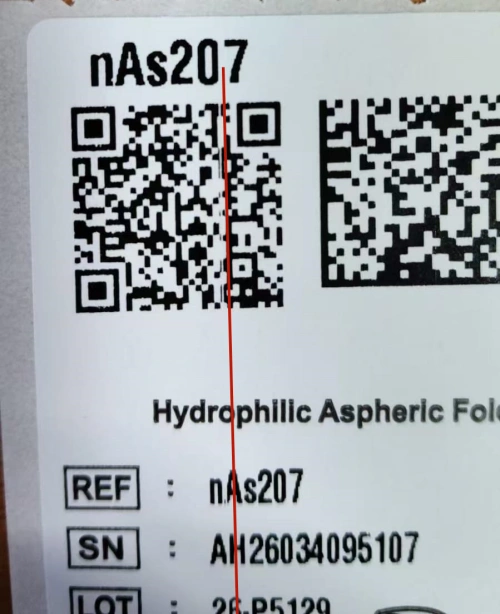
If a white line consistently appears in the same position on every label, the problem may be related to the printhead.
Dust, ribbon residue, adhesive, or other contamination on the printhead can prevent part of the thermal line from making proper contact with the media. As a result, the affected heating elements may not transfer enough heat to the label, leaving a white line.
Another possibility is a damaged heating element, commonly referred to as a broken printhead dot or broken element.
Clean the Label Printer Head First
Before replacing the printhead, clean it carefully and test the printer again.
- Turn off the printer and allow the printhead to cool down.
- Open the printhead assembly.
- Take a cotton swab and apply a small amount of isopropyl alcohol (IPA).
- Gently wipe the thin thermal line of the printhead.
- Allow the alcohol to evaporate completely before turning the printer back on.
- Close the printhead and print a test label.
When cleaning, avoid applying excessive pressure. It is also better to wipe in one direction instead of repeatedly rubbing back and forth.
Important: Make sure the alcohol has completely evaporated before switching the printer on again.
For more detailed cleaning instructions, see our guide:
How to Clean a Barcode Printer Head Without Damaging It?
What If the White Line Is Still There?
If you have cleaned the printhead properly but the white line remains in exactly the same position, a damaged heating element becomes much more likely.
A printer thermal head contains many tiny heating elements. If one or more of these elements are damaged, the affected area may no longer generate enough heat to print properly.
In this case, cleaning will not restore the damaged element, and the printhead will generally need to be replaced.
Before replacing it, however, it is still worth checking the ribbon, media, printhead pressure, and other mechanical components to make sure they are not contributing to the problem.
White Line Does Not Stay in the Same Position
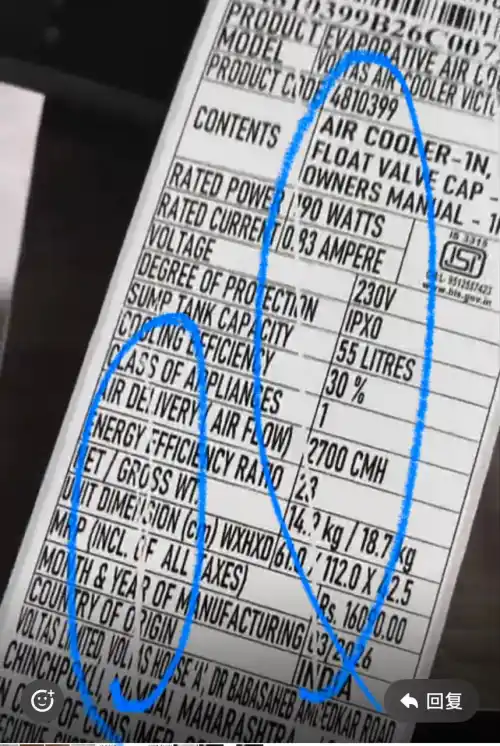
If the white line appears in different positions from one label to another, or if it comes and goes during printing, the problem may be related to the ribbon, label material, printhead pressure, or other printer components.
In this situation, check the following areas.
1. Check the Thermal Transfer Ribbon
If you are using a thermal transfer printer, the ribbon should move smoothly through the printer and remain properly aligned during printing.
A wrinkled ribbon, uneven ribbon tension, or incorrect ribbon installation can prevent the ribbon from making proper contact with the thermal transfer print head and label material. This may result in white lines or other unprinted areas.
Excessive print temperature can also cause the ribbon to wrinkle or behave incorrectly during printing.
How to Fix Ribbon Problems
First, check that the ribbon is:
- Installed in the correct direction
- Properly aligned
- Smooth and free of wrinkles
- Properly tensioned
- Suitable for the printer and label material
If the ribbon is wrinkled, reinstall it and adjust the ribbon tension if your printer provides a tension adjustment.
You can also try reducing the print temperature or darkness if the current setting is unnecessarily high.
Make small adjustments and test the print quality after each change.
2. Check the Label Material
The label material itself can also cause white lines or unprinted areas.
For example, the affected area may contain:
- Adhesive residue
- Surface contamination
- Uneven coating
- Local surface treatment
- Manufacturing defects
These conditions may prevent the media from receiving heat or prevent the ribbon from transferring properly.
How to Check for a Media Problem
Try printing the same label design using a new roll of good-quality media.
If the white line disappears after changing the label material, the original roll is likely contributing to the problem.
This is a simple but useful test because it helps determine whether the problem comes from the printer or the consumable material.
3. Check Printhead Pressure and Loose Components
Uneven printhead pressure can also affect print quality.
If the pressure on the left and right sides of the printhead is not balanced, the printhead may not maintain consistent contact with the ribbon and media across the printing area.
Loose or misaligned components inside the printer can create similar problems.
For example, a loose media guide, deflector, or guide roller may cause the ribbon to become misaligned or wrinkle before it reaches the printhead.
How to Fix Pressure or Mechanical Problems
Check the following:
- Whether the printhead pressure is balanced on both sides
- Whether the printhead is seated correctly
- Whether the media guides are positioned correctly
- Whether any deflectors or guide components are loose
- Whether the rollers are securely installed
- Whether the ribbon path is straight and unobstructed
If your printer has adjustable printhead pressure, make small adjustments and test the printer after each adjustment.
If you are not familiar with the printer’s mechanical structure, avoid making unnecessary adjustments to internal components. Incorrect adjustments may create additional print-quality problems.
A Quick Way to Troubleshoot White Lines
The following table can help you narrow down the possible cause before replacing a printhead.
| White Line Symptom | Possible Cause | What to Check |
|---|---|---|
| White line always appears in the same position | Dirty or damaged printhead | Clean the printhead and test again |
| White line remains after cleaning | Damaged heating element | Consider replacing the printhead |
| White line appears in different positions | Ribbon or media problem | Check the ribbon and label material |
| Ribbon has visible wrinkles | Uneven ribbon tension or excessive heat | Reinstall the ribbon and adjust the settings |
| White line appears only with one roll of labels | Media problem | Test with a new roll |
| Print quality is uneven across the label | Uneven printhead pressure | Check and adjust the pressure |
| Ribbon wrinkles before reaching the printhead | Loose or misaligned components | Check the guides and rollers |
When Should You Replace the Label Printer Head?
A white line does not automatically mean that you need a new label printer head.
Before replacing the printhead, check the possible causes in the following order:
- Clean the printhead.
- Check the ribbon installation and tension.
- Test with another roll of label material.
- Check the printhead pressure.
- Inspect the ribbon path, guides, rollers, and other relevant components.
If the white line remains in exactly the same position after these checks, a damaged heating element is more likely.
At that point, replacing the printhead may be the most practical solution.
When selecting a replacement, make sure the label printer head matches the exact printer model, print resolution, and printhead configuration. Different printer versions can use different printheads even within the same product family.
Final Thoughts
White lines in thermal printing do not always mean that the printhead needs to be replaced.
The most useful first step is to observe where the white line appears and whether it stays in the same position. A line that repeatedly appears in exactly the same position points more strongly toward a printhead-related problem, while inconsistent white lines may require closer inspection of the ribbon, label material, printhead pressure, and printer mechanics.
By troubleshooting these areas in the right order, you can often identify the cause without replacing parts unnecessarily.
If you have checked the ribbon, media, pressure, and printhead condition and the problem still remains, the printhead may have reached the end of its service life and need replacement.
